If a page will not load
Try a second page from the menu. If neither loads, check the connection and retry from the address bar. If only an external link fails, first confirm that this website still works.
If a countdown looks paused
Return to the page and check the device clock. Mobile browsers can pause background tabs. The countdown recalculates when the tab becomes active. Refresh once if the time still looks wrong, and record the interval and time if you report it.
Isolate the connection issue
Check a second website and then return to the affected page. If several sites fail, try another network you are permitted to use. If a single page fails, note the URL and error before changing any device settings.
Check your device clock before changing the network
The countdown uses the device timestamp and shows it against IST boundaries. Verify that the device is set to update its date and time automatically. If the browser resumed a suspended tab, return to the page or refresh once and look at the current period ID. Note both the device time and the interval if the discrepancy continues.
Check where the error appears
A page failure before opening an external link is different from a problem on the destination. Test a second internal page and note the exact message. For a setup question, choose the device tutorial below. Its pictures illustrate several screens and the accompanying text explains where permission prompts can differ.
VPN Setup Tutorial
Choose your device. The images show examples of the screens you may see. Labels and prompts can vary by app version. Use a connection permitted by the network you are on.
iPhone and iPad
-
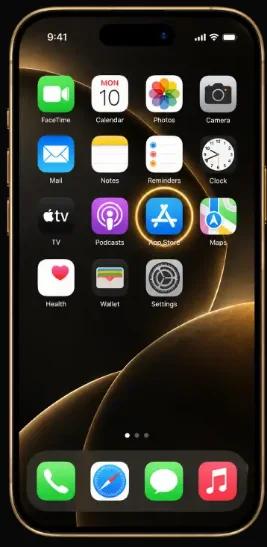
Open the App Store
Open the App Store on your device and select Search.
-
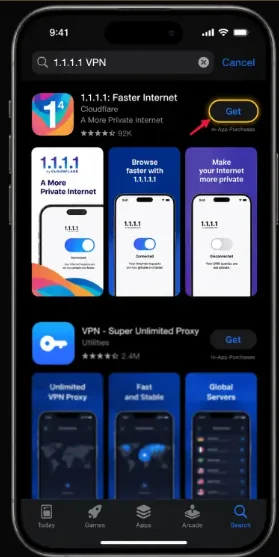
Find the Cloudflare app
Search for 1.1.1.1, check that the provider is Cloudflare and install the app.
-
Review the VPN profile prompt
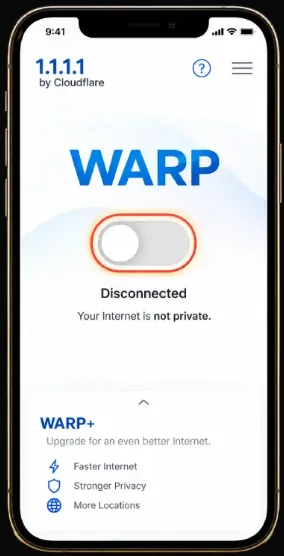
Open the app and read the setup screens. If iOS asks to add a VPN configuration, check the app name and allow it only if you intend to use it.
-
Connect and confirm the status
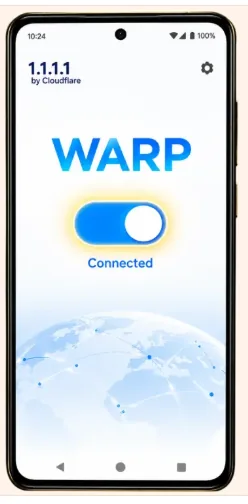
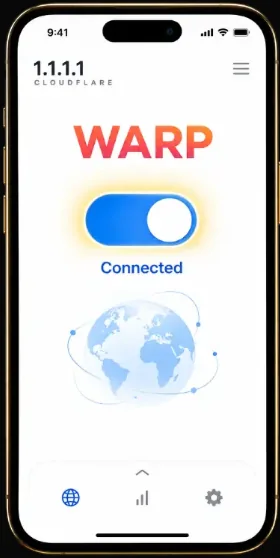
Turn on the connection in the app. Check for Connected. If the status does not change, review the connection or turn the switch off and retry.
Android
-
Open Google Play
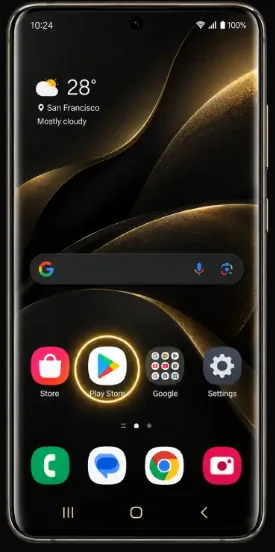
Open the Google Play Store and use its search field.
-
Find and install the app
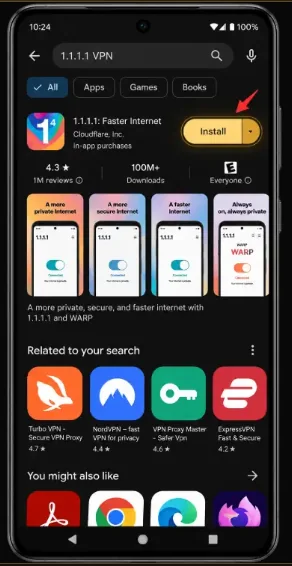
Search for 1.1.1.1. Check that the app is from Cloudflare before tapping Install.
-
Review the connection request
Open the app and follow the setup screens. Read any Android VPN connection request before accepting it.
-
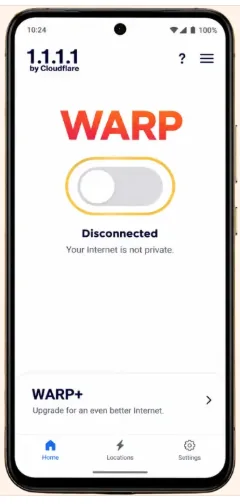
Connect and check the result
Turn on the connection and look for Connected in the app. You can turn the switch off again to disconnect.